

Your dashboard
Your home page — clock in, see what needs doing, check your leave balance, and catch what's coming up.
What you can do here
- Clock in and out without going to the attendance page.
- See everything waiting on you in one list — tasks, approvals, hiring actions, and your own to-dos.
- Keep your own to-do list, set reminders, and name a colleague on one when it concerns them.
- Get told when you've forgotten to log time.
- Check your leave balance and apply without leaving the page.
- See who's away, and what's coming up — birthdays, work anniversaries, new joiners, and holidays.
What's on the page
The header
Greets you by name and holds today's attendance: whether you're clocked in, how long you've worked, and how you're tracking against the month. Clocking in from lets you set Office or WFH before you clock in, exactly as on the attendance page.
If you've missed logging time on any recent day, a banner appears here listing those days. It's the fastest way to catch a gap before the day locks.
Only an administrator can switch that banner off, and switching it off removes it for everyone, not just for them. That's deliberate: a reminder the people it's aimed at can silence isn't a reminder. If it has been turned off, an administrator sees Show missing time log warning in its place and can bring it back.
Your Priorities
The main list: everything waiting on you, grouped by kind. Filter it with the tabs across the top — All, Tasks, Hiring, Actions and Todos. An Involving me tab joins them once somebody has named you on one of their to-dos.
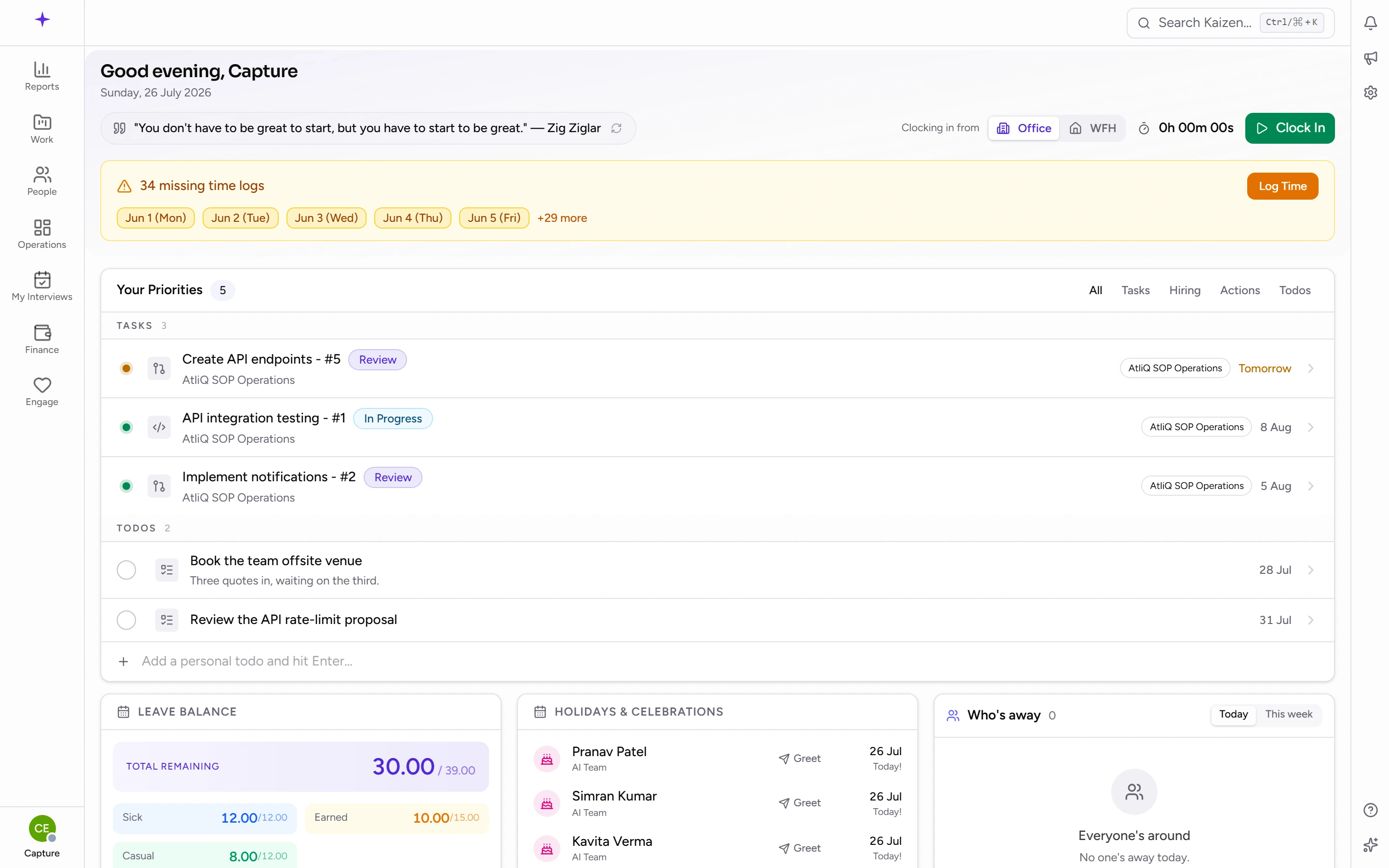
- Tasks — work assigned to you, with its project and state.
- Actions — things needing a decision, such as requests waiting on your approval.
- Hiring — interviews and candidate feedback, if you're involved in hiring.
- Todos — your own list. Yours unless you deliberately name somebody on one; see below.
- Involving me — to-dos somebody else wrote and named you on. They sit last, after your own, because they aren't yours to do.
Click any item to go straight to it. View all opens the full list behind that section.
The three cards
- Leave Balance — what's left of each leave type, with a shortcut to apply. The application form opens right here.
- Holidays & Celebrations — upcoming holidays, birthdays, work anniversaries, and people who've recently joined. Each person has a Greet action, which is the whole point of the card. It has two views: Coming up is the glance view — the next few of everything mixed together — and All holidays swaps the card over to the public holidays alone, twelve months ahead, grouped by month and scrolling inside the card. Use that one when you're planning around holidays rather than seeing who to greet.
- Who's away — teammates on leave or working from home, so you know who you can't reach today.
Common tasks
Act on something waiting for you
Open Your Priorities, use the tabs to narrow it if the list is long, and click the item. You'll land on the thing itself — the task, the request, the candidate — where you can action it properly.
Keep a personal to-do list
Add to-dos from the Todos tab of Your Priorities — type the title and press Enter. Each has Mark done and a delete action. They're unrelated to project tasks, so they're good for the small things that don't belong on a board.
Open a to-do to edit it and you'll find Notes, a due date, a reminder, and Regarding.
Name someone on a to-do
Regarding is how you point a to-do at a colleague — "chase Priya about the invoice". Open the to-do, pick the person under Regarding, and save. It starts at No one, so nothing is shared unless you choose to share it.
Be clear about what this does and doesn't do:
- It is not an assignment. The to-do stays yours. They can't edit it, complete it, or delete it.
- They see the title and the due date, on their own dashboard, under Involving me, marked as yours — it reads as "Priya Sharma noted: chase the invoice".
- They never see your notes. The Notes box is labelled Only you can see these, and that holds even after you name somebody.
- One person at a time. A to-do is about one colleague, not a group.
To stop sharing it, set Regarding back to No one.
Something appeared under Involving me
Somebody named you on their to-do. There's nothing to action — you can't complete it, and it isn't waiting on you in the way an approval is. It's there so you know it exists.
If you don't want it in your list, hide it. That removes the row from your dashboard only; it doesn't delete anything, and the person who wrote it still has it. You get an undo if you hide one by accident.
Apply for leave without leaving the page
Use the shortcut on the Leave Balance card. The full leave form opens over the dashboard, with your balances shown as you choose a type.
Fix missing time logs
If the missing-logs banner names a day, click through to that day's timesheet and fill it in. Days lock a set time after they end — how long is up to your company — so the banner is worth acting on rather than dismissing.
Good to know
- The dashboard isn't customisable — you can't add, remove, or rearrange the cards. What you see is driven by your role and what's actually waiting on you.
- Some roles have more than one dashboard. If you do, a switcher appears in the header; everyone has the personal one described here.
- A colleague's dashboard looking different is normal — the Hiring section only appears for people involved in hiring, and Actions only shows approvals you're allowed to make.