

Managing invoices & Zoho
The finance side — review requests at both stages, raise the invoice in Zoho Books, send it to the client, and track payment back.
What you can do here
- Review invoice requests at both approval stages.
- Turn an approved request into a real invoice in Zoho Books.
- Send that invoice to the client.
- Track payment as it comes back from Zoho.
- Keep Zoho contacts linked to the right Kaizen clients.
Invoices originate in Zoho. Kaizen doesn't create them locally — it requests, approves, pushes, and then tracks.
The path a request takes
- Someone raises an invoice request with its line items.
- Stage 1 — the commercial review. Approve to move it to Finance, or reject with a reason back to the requester.
- Finance creates it in Zoho — choose the Zoho organization and Zoho contact, set the Tax (applied to every line item), and the invoice and due dates.
- Stage 2 — check the recipients, subject and message, then approve to have Zoho email the invoice to the client.
- Payment status syncs back.
Each step refuses politely if it's taken out of order — you'll be told that only requests in the Finance queue can be pushed to Zoho, or that only post-creation requests can be approved at Stage 2.
Tracking invoices
Invoices lists everything that has become a real invoice, with its number, Client, Amount, Status, Invoice Date, and Due Date.
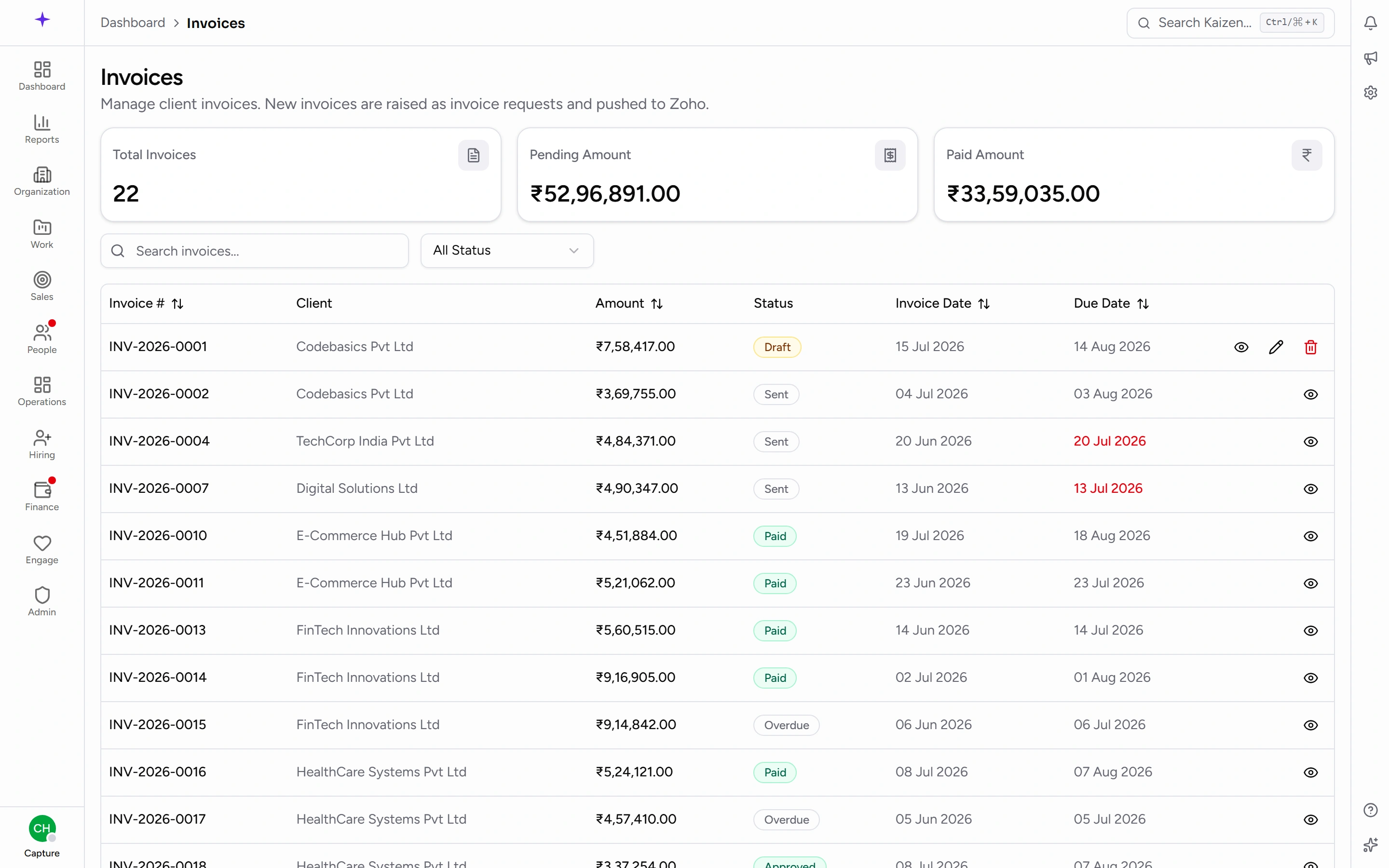
Statuses are Draft, Pending Approval, Approved, Sent, Paid, Overdue, and Cancelled. Filter by status — Overdue is the one worth having as a saved habit.
Payment status syncs back from Zoho automatically, and a request can also be refreshed from Zoho on demand when you want to check right now rather than wait.
Zoho clients
Zoho Clients holds the contacts pulled from Zoho Books. Refresh to pull the latest, then link a Zoho contact to a Kaizen client — one to one — so invoices land against the right account.
An unlinked client is the usual reason a request can't be pushed: there's nowhere in Zoho to put it.
If Zoho isn't connected
Requests can still be raised and approved. What stops is the push: without a working Zoho connection there's no invoice to create, and the step fails rather than inventing a local one.
That's deliberate. Invoices exist in the accounting system or they don't exist at all — an approved request sitting in Kaizen is a promise to bill, not a bill.
Good to know
- Rejection reasons are required. They're the requester's only instruction on what to fix, at either stage.
- Tax is applied to every line item, so check it before creating rather than fixing the invoice in Zoho afterwards.
- When Zoho refuses an invoice, the message tells you where you stand and who to ask. It says that nothing was created in Zoho and the request is unchanged, quotes Zoho's own words and its code, names the Zoho organisation that refused, and tells you to send that to whoever administers it and push again once they confirm it's fixed. The cause is almost always a setting in Zoho — a mismatch on the contact, a tax setting, a required field left blank — so it's fixed there, not in Kaizen. Quote the message as it stands; rewording it in your own words is how these get diagnosed wrongly.
- A client's outstanding balance and payment behaviour roll up onto the client record, which is the better place to look before agreeing new terms.