

Approving leave, WFH & attendance requests
Work through your team's leave, work-from-home, partial-day and attendance-correction requests, and decide each one.
What you can do here
- Review leave, work-from-home, partial-day, and attendance-correction requests from your team.
- Approve or reject each one, with a comment.
- Revoke an approval, or shorten an approved work-from-home run.
You can't action your own requests, and only Pending ones can be decided.
Where each type is decided
They don't all live in one queue — the request sits with the thing it affects:
- Leave — on the Leave Requests page.
- Work from home, partial day, and attendance corrections — on Attendance, under the Attendance Requests tab, each on its own sub-tab.
- Timesheet unlocks — on their own page, covered separately.
Anything waiting on you also surfaces under Actions in Your Priorities on your dashboard, which is the quickest way to see whether there's anything at all.
Common tasks
Approve or reject leave
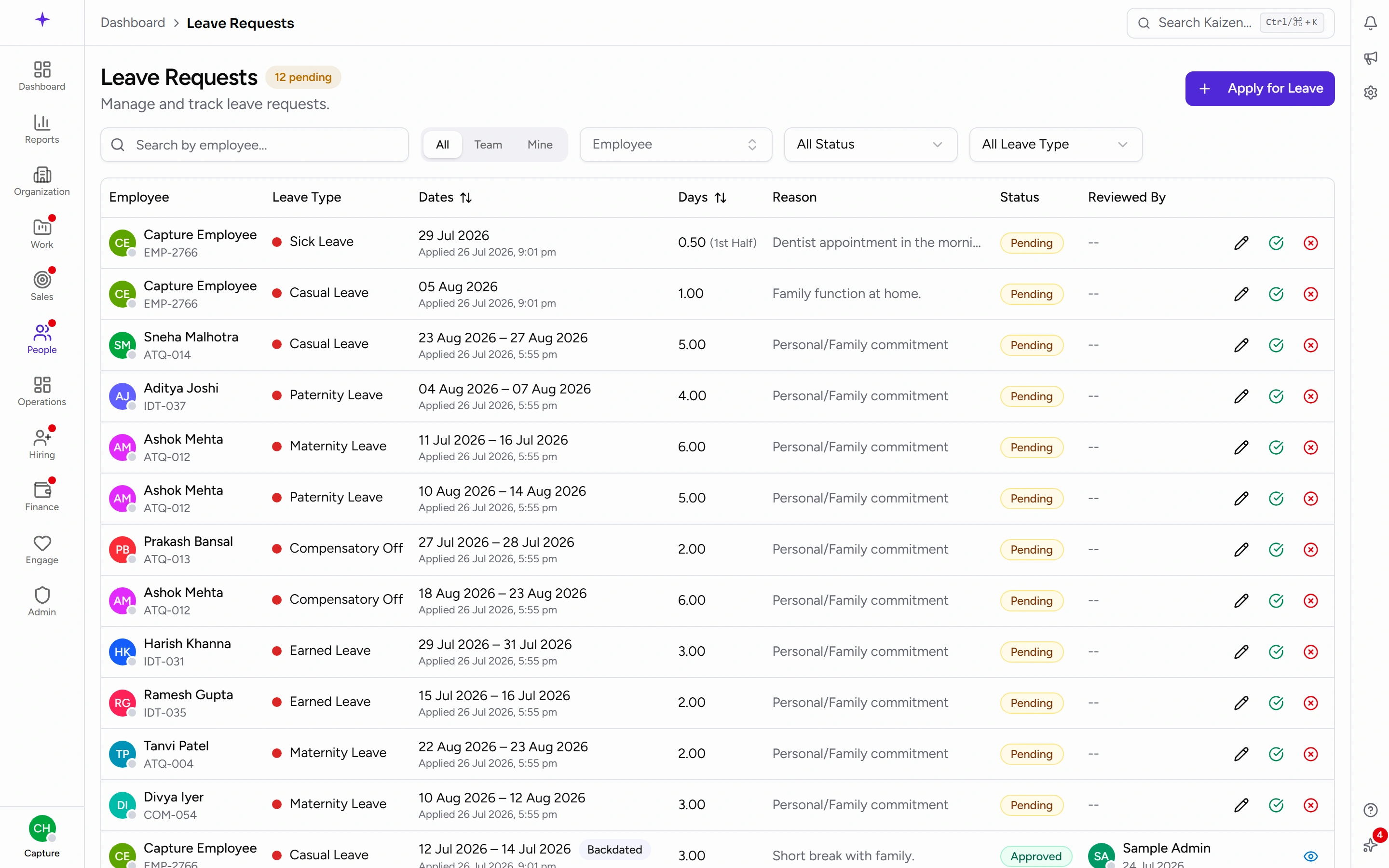
- Open Leave Requests and switch Scope to Team, or All if you have that reach.
- Find a pending request. The row gives you the type, dates, day count, and their reason.
- Use the tick to approve or the cross to reject.
- Add your remarks — the prompt asks for Comments (optional) when approving and Reason for rejection... when rejecting — then confirm.
Approving debits the person's leave balance there and then. If they later cancel an approved leave themselves, the balance goes back and you're notified.
Approve or reject work from home
- Open Attendance → Attendance Requests → WFH.
- Use the tick or the cross on a pending row, adding Comments (optional) either way.
A request that would take someone past their yearly WFH allowance carries an Over limit flag. It's a warning, not a block — you can still approve it, and the person was warned when they raised it.
Two extra actions exist on approved rows:
- Adjust end date shortens a run — for someone coming back to the office earlier than planned — leaving the earlier days intact.
- Revoke cancels the whole thing.
Approve or reject a partial day
Open Attendance → Attendance Requests → Partial Day. These are short — a date, whether it's a late arrival or an early finish, and how many minutes. Tick or cross, with comments if you want to explain.
Review an attendance correction
- Open Attendance → Attendance Requests → Regularization and open the request.
- The dialog puts Current punches next to Requested changes, so you can see exactly what's being claimed against what was recorded, along with their Reason.
- Add a comment — required when rejecting — and approve or reject.
This one is worth reading properly rather than approving on sight: it rewrites what the attendance record says about a day.
Good to know
- A rejection comment is the only explanation the person gets. It's optional on leave and WFH, required on regularization. Writing one on all of them saves a follow-up conversation.
- Each sub-tab carries its own count of what's still pending, so you can see where the backlog is without opening them.
- Approvals follow the reporting line. If you can see a request, you're allowed to decide it; if a request isn't reaching you, the person's reporting manager is set to someone else.
- Nothing here is undone by editing. To reverse an approved leave, the person cancels it; to reverse approved WFH, use Revoke.