

Support tickets
Raise an internal support request, attach screenshots, follow the conversation, and track it to resolution.
What you can do here
- Raise an internal support request — IT, HR, facilities, anything — and track it to resolution.
- Give it a category and a priority, and attach screenshots so the team can see the problem.
- Follow the conversation in one thread and reply as it goes.
- Find any of your past tickets by number, category, priority, or status.
- If you handle tickets: pick them up, set status and priority, and work the queue.
Where to find it
Internal Tickets lists your requests. Each row shows the Ticket #, Subject, Category, Priority, Submitted By, Assigned To, Status, when it was Created, and when it was Resolved. A ticket nobody has picked up yet reads Unassigned.
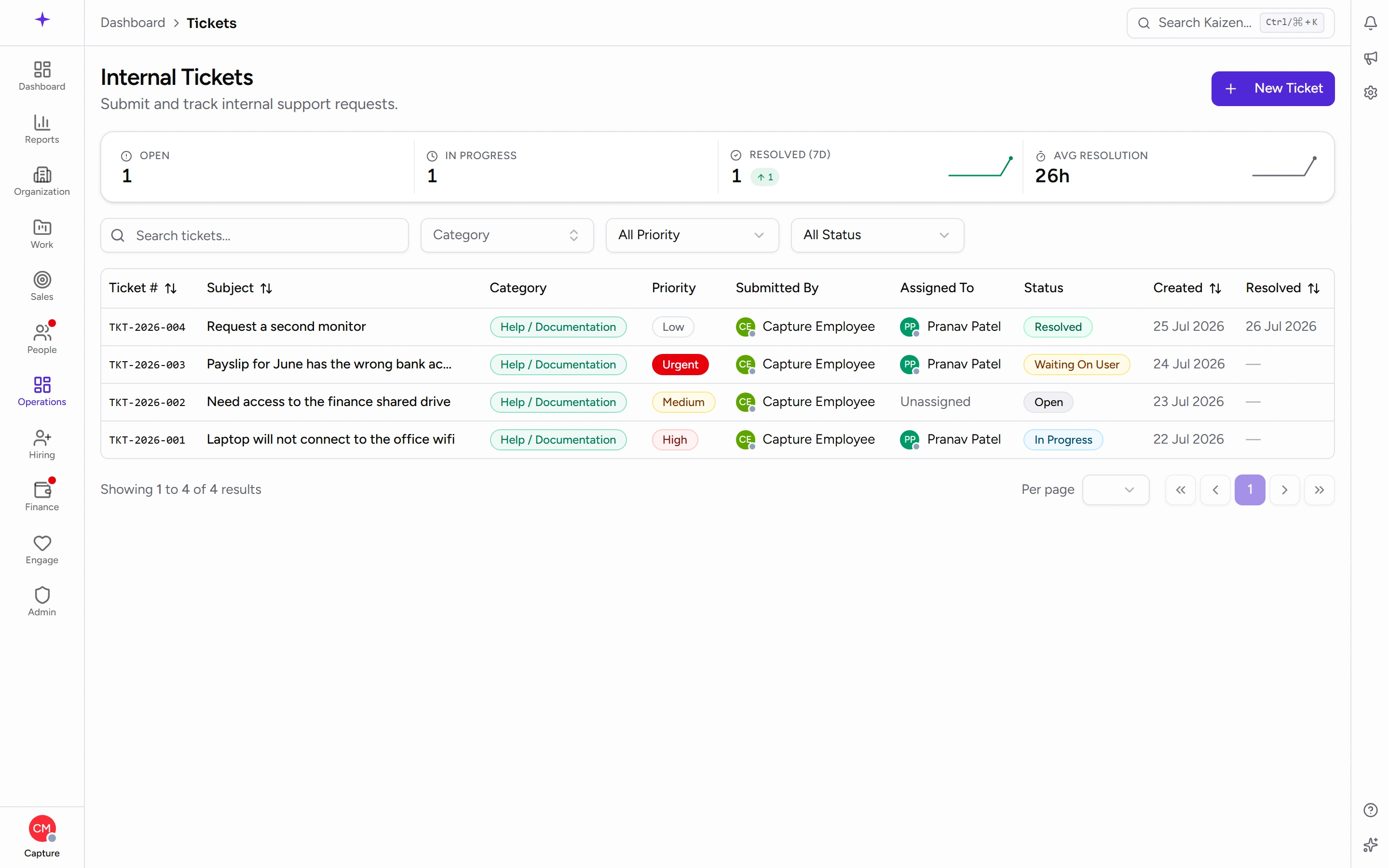
Across the top are Open, In Progress, Resolved (7d) and Avg resolution — a quick read on whether the queue is keeping up.
You don't have to be on this page to raise one — the same form opens from a help article, so you can ask for help without losing your place.
Common tasks
Raise a ticket
- Start a new ticket. A panel opens headed Submit a New Ticket.
- Pick a Category — this is what decides which team it reaches, so it's worth getting right.
- Write a Subject: a brief summary of the issue.
- Fill in the Description. Both of these are required. Say what you expected, what happened, and what you've already tried.
- Set the Priority — Low, Medium, High, or Urgent. It starts at Medium.
- Add Attachments if a picture would help. Drop images on the box or click to browse: JPG, PNG, WebP or GIF, up to 3 files and 10 MB in total.
- Submit. The ticket gets its own number and the right team is notified.
Follow a ticket
Open it from the list. The ticket's page has the Description, any Attachments, the conversation, and a Details panel down the side with its Status, Priority, Category, who it's Assigned To, and when it was Created.
Click an attachment to view it.
Reply
Type into Write your comment... on the ticket and post it. A reply can carry its own attachments too — same rules as the ticket itself: JPG, PNG, WebP or GIF, up to 3 files and 10 MB per reply — and each reply shows the files that arrived with it. Everything — your messages, the team's, and their attachments — stays in the one thread, so there's no email to dig through.
Find an old ticket
Use the filters above the list: Category, Priority, and Status. Searching also matches the ticket number, so if you have a reference from an email you can paste it straight in.
What the statuses mean
- Open — raised, not yet picked up.
- In Progress — someone is working on it.
- Waiting on User — the team needs something from you. Nothing will move until you reply, so this is the one to watch for.
- Resolved — the team believes it's fixed.
- Closed — finished and filed.
You're notified when the status changes.
If you handle tickets
Open the ticket and use the Details panel to set its Status and Priority, and to assign it. Those controls only appear if you're allowed to action tickets — for everyone else the same panel is read-only.
Working the queue is a matter of filtering: Status for Open, Priority for what's urgent, Category for your team's area.
Good to know
- Attachments are images only. For a document or a log file, describe the problem in the ticket and the team will tell you where to send it.
- Priority is a request, not a promise — the team may re-set it based on impact.
- Waiting on User is the most common reason a ticket seems to stall. If yours has been quiet, check whether it's waiting on you.