

System settings & sign-in
Configure sign-in, connect Microsoft single sign-on and Teams meetings, set the company profile and locale, and control which dashboard prompts and motivation signals everyone sees.
What you can do here
- Decide how people sign in, and connect Microsoft single sign-on.
- Let interviewers create Teams meetings.
- Set the company's identity, contacts, and locale.
- Control which prompts appear on everyone's dashboard, and which motivation signals show — and to whom.
These all live under the Admin area. Opening Admin shows a settings rail down the left with every admin screen you can use, grouped by what it configures — Authentication sits under Security & Access, Company Profile under Organisation, and Integrations, the Task Control Center and the Motivation Strip under System. Typing into Search settings… at the top of the rail finds a screen by name.
Authentication
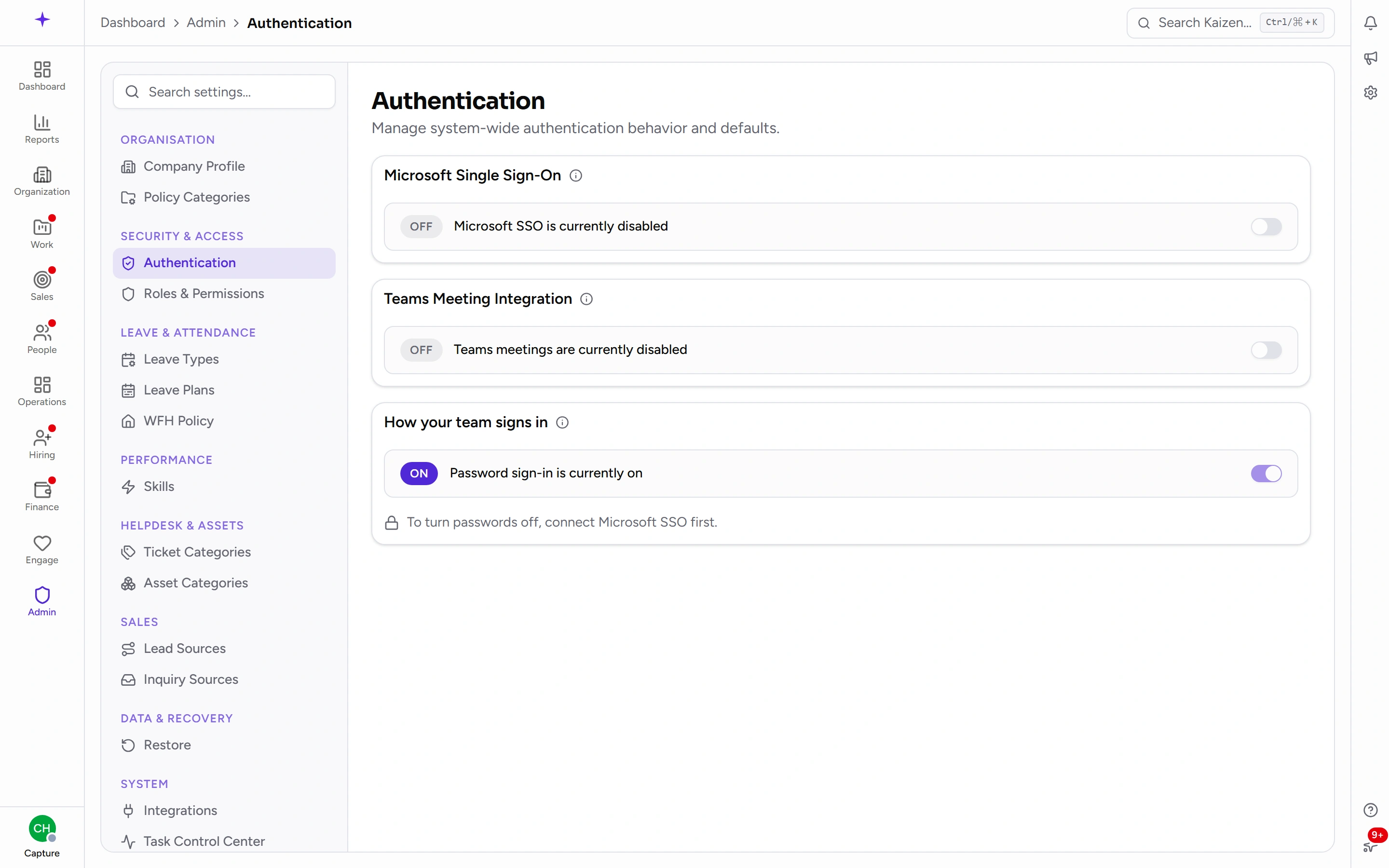
Microsoft Single Sign-On
Turning Microsoft Single Sign-On on approves Kaizen for your Microsoft organization once. After that, a Sign in with Microsoft button appears on your sign-in page. There are no client IDs, secrets, or setup steps for anyone to copy around.
A person's Microsoft work email must match their Kaizen email, or the two accounts won't line up.
Needs admin approval means the approval has to come from a Microsoft administrator for your organization. The card gives you a link to forward to your IT team — they can approve it without a Kaizen account, so there's no need to get them an account first.
Turning it off only hides the button. Your organization keeps its approval, so you can turn it back on later without going through Microsoft again.
Reconnect re-approves and re-pins your Microsoft directory. Use it only if that directory actually changed — it isn't a general-purpose fix.
Teams Meeting Integration
Lets interviewers attach real Teams meetings to interviews, with Kaizen creating, updating and cancelling them as the organizer.
This one works even before a Microsoft administrator has approved it — each interviewer just gets asked to approve individually the first time they connect. The card warns you when you're in that state, because some organizations block individual approval, and then it fails per person rather than obviously. Forwarding the approval link clears it for everyone at once.
⚠️ Turning this on is only half the job. Kaizen creates each meeting as the person who scheduled it, so every interviewer also has to connect their own Microsoft account before they can pick Teams — that half is covered on the hiring page. Until they do, the option stays greyed out for them even though the setting here is on.
How your team signs in
Password sign-in is on by default, so people can sign in with email and password from day one.
To move to Microsoft only: connect single sign-on, sign in with Microsoft once yourself to prove it works, then turn passwords off. Until that real sign-in has happened, the off switch stays locked and says why. That's an anti-lockout guard — it's what stops a workspace turning off the only sign-in method that was actually working.
Turning passwords off hides the password form. Nothing is deleted, and you can turn it back on at any time.
If Microsoft sign-in fails badly enough that nobody can get in, Kaizen support can restore password sign-in. When that has happened, a notice on this page says so and stays until an administrator turns passwords back off.
Connecting Zoho Books and Keka
Those are business integrations rather than sign-in, so they live on their own page — see Connecting Zoho Books & Keka.
Company Profile
- Identity — legal and display names, brand colour, and the logo. The Legal Name is required: it's what prints on offer letters and invoices, and left blank those documents would go out with a gap where your company's name belongs.
- Contacts — the from, support, and billing addresses, and the signatory.
- Locale — Currency, Timezone, Fiscal Year Start Month, and Date Format.
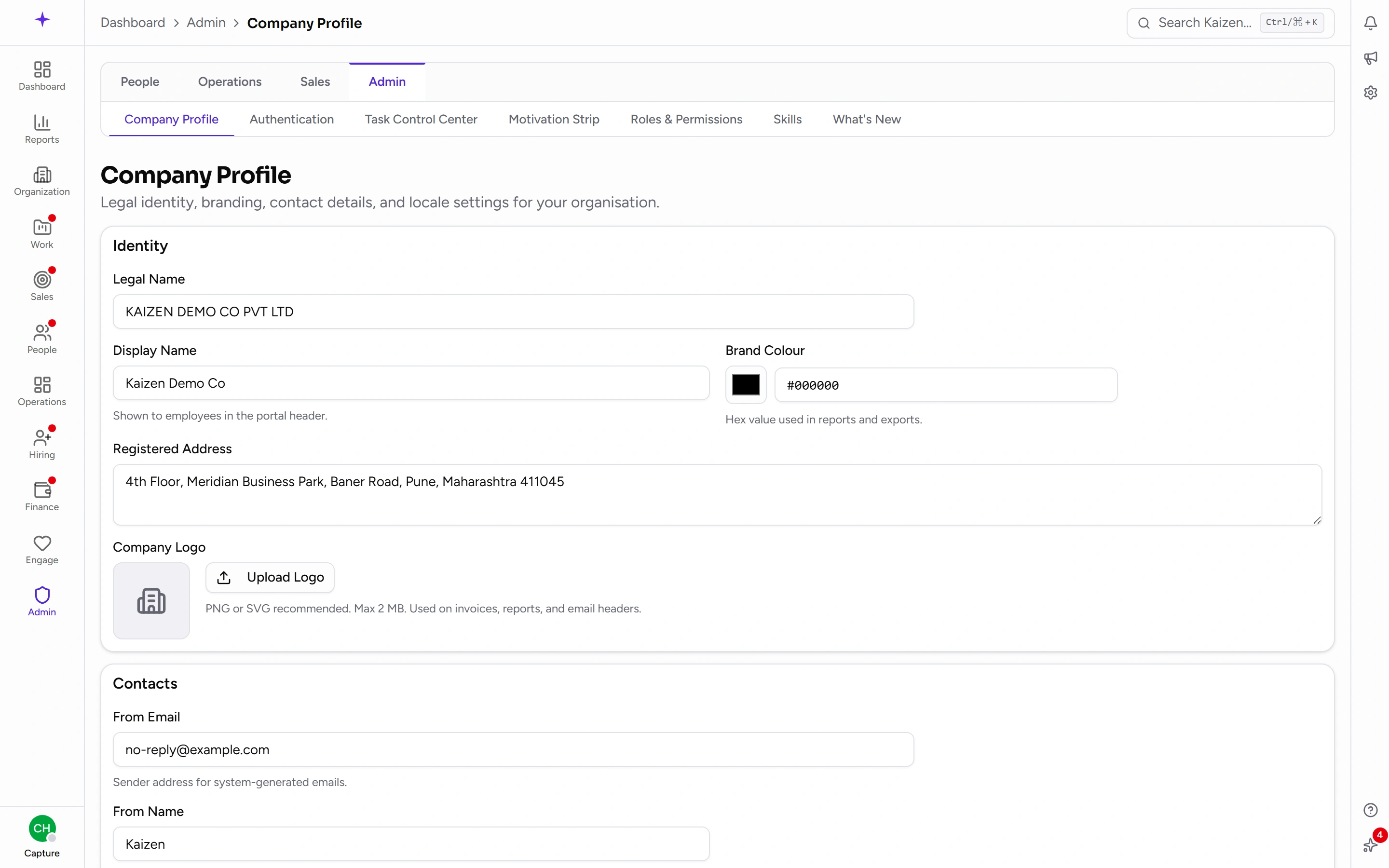
The locale settings apply to everyone. There's no per-person timezone, so this is the setting that decides how dates and times read across the whole product.
Statutory registrations
Below the profile sits the Statutory section — the schemes your company is registered under: Provident Fund, Employees' State Insurance, Professional Tax, and Labour Welfare Fund.
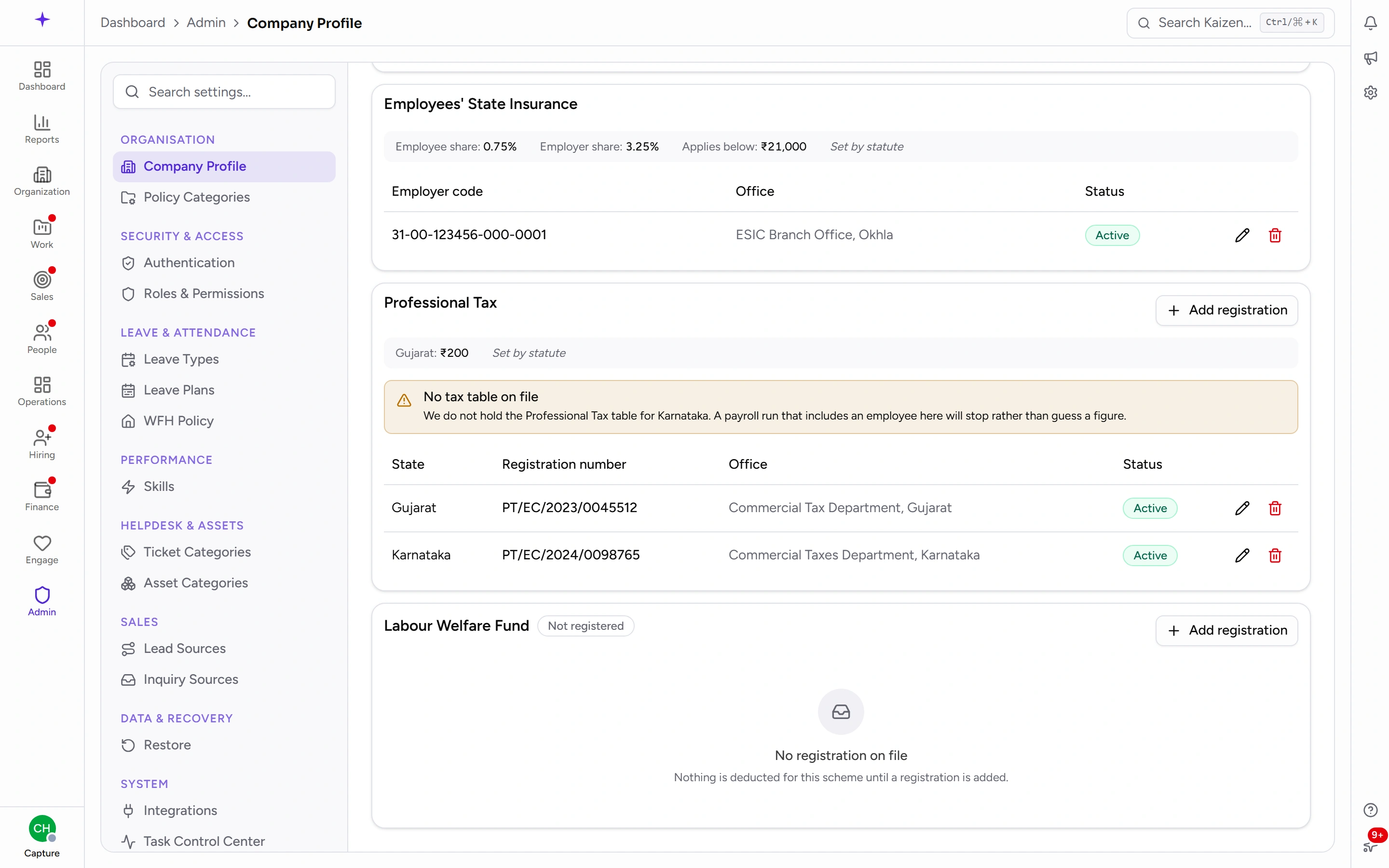
The rule to hold on to: rates come from the law, registrations come from you. Kaizen already holds the statutory tables; what it can't know is which schemes your company is actually registered for, and under what numbers. Provident Fund and Employees' State Insurance take one company-wide registration each; Professional Tax and Labour Welfare Fund are per state, so you add one registration for each state where you're registered.
Each registration saves on its own, separately from the profile form above it.
This section matters to payroll directly: if a salary structure deducts for a scheme that has no registration on file, the payroll run refuses to process and names what's missing. The deduction isn't silently skipped — that would quietly stop a legally required contribution — so the run waits until the registration is entered here. See Running payroll.
Task Control Center
Controls which types of item appear in people's dashboard priorities.
Turning a type off hides it for everyone, regardless of their permissions. Turning it on doesn't grant anything — people still need the relevant permission to see each item. Types added in future updates default to on.
It's a noise control, not an access control. Use it when a prompt is cluttering dashboards for people who can't act on it anyway.
Motivation Strip
Controls the motivational signals on the dashboard.
The toggle hides a signal for everyone. The role picker hides it only for the selected roles — which is how you opt leadership or contractors out of specific nudges without removing them for staff. New signals default to on for everyone, and the quote-of-the-day fallback always appears when nothing else is eligible.
Good to know
- These settings are company-wide. A change here lands for everyone at once, with no per-person override.
- Turning something off in either control centre is invisible to the people affected — they simply stop seeing it. Worth noting somewhere when you do it, so the next administrator isn't puzzled.
- Branding on the company profile also drives what clients see in their portal, so it's worth getting the logo and names right rather than leaving placeholders.