

Importing data & onboarding
Bring your organisation into Kaizen from a spreadsheet or Keka — upload, map columns, dry-run, then import.
What you can do here
- Bring a whole organisation in at once — business units, departments, designations, and people with their reporting lines.
- Check everything before anything is saved.
- Seed sensible starting settings so the company is usable on day one.
Where to find it
Organization → Data Import, in the sidebar. It's there for anyone who can import, and it doesn't go away once you've used it — the page lists every import you've run, with New import to start another.
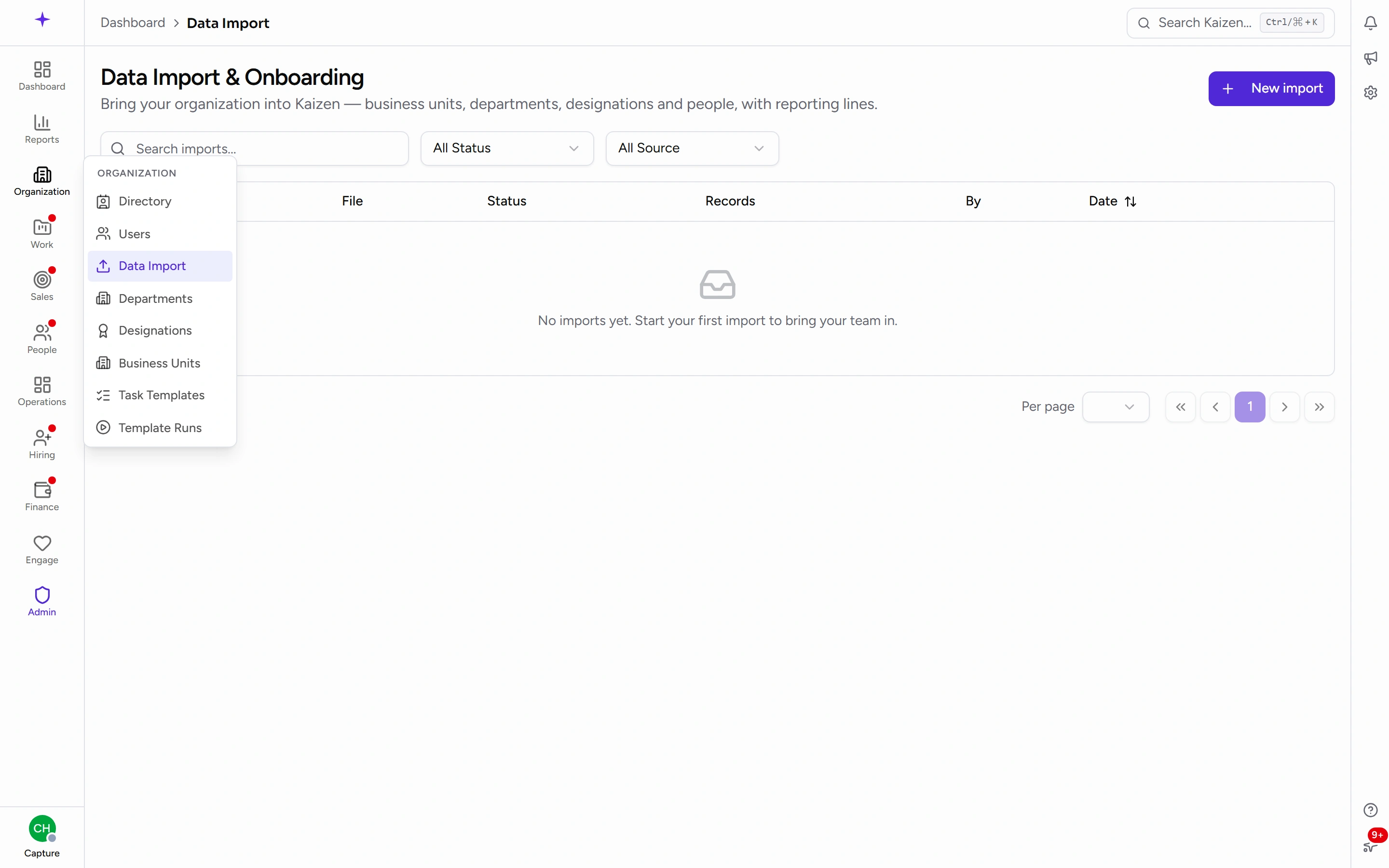
You'll also meet it during first-time setup, as the Bring in your people step. That's the same importer, so nothing you learn here is wasted if you started there.
The wizard
Six steps: Source, Upload, Map columns, Review, Import, and Organize.
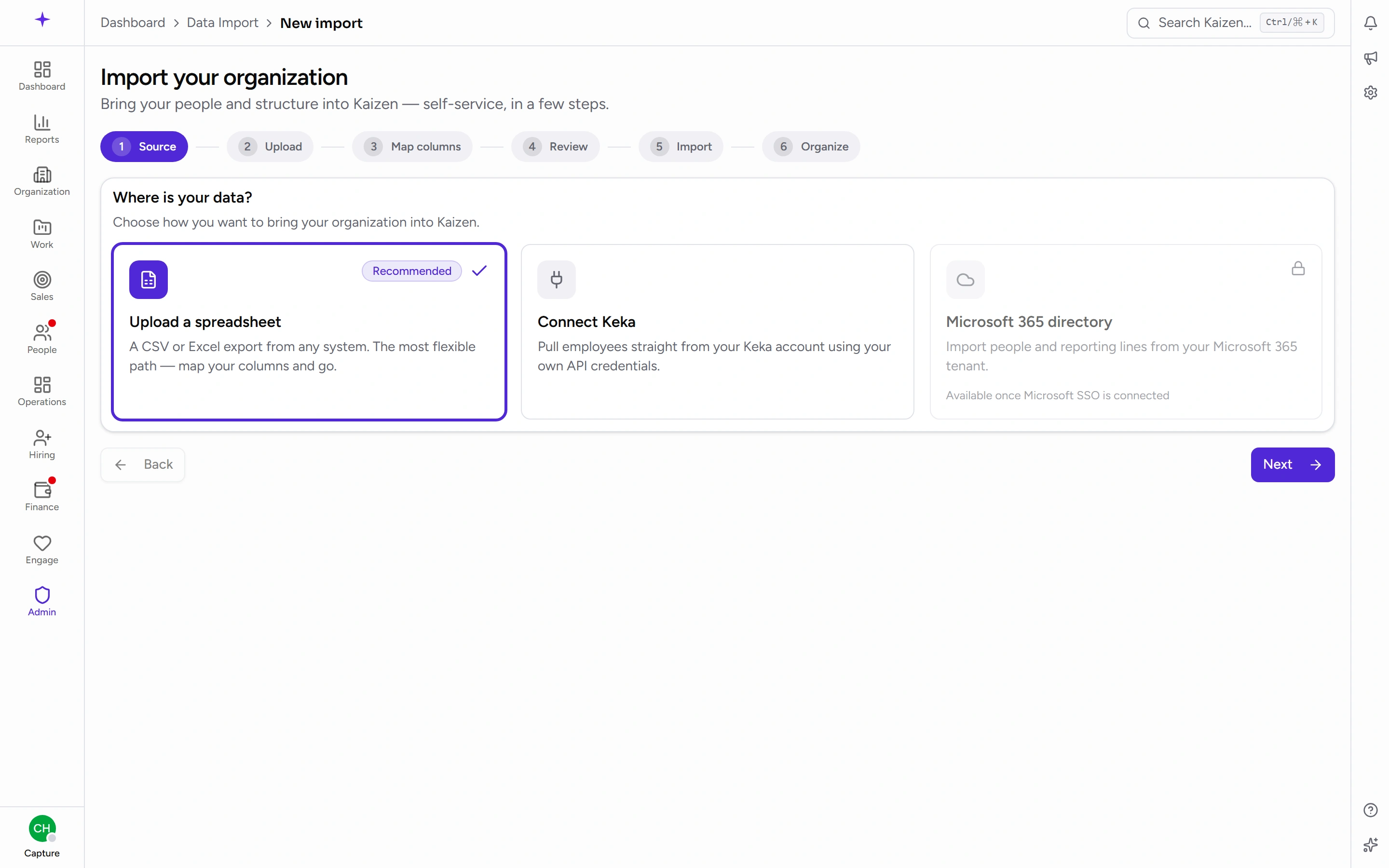
From a spreadsheet
- Source — choose to upload a spreadsheet.
- Upload — take the Download template first if you can. It's already laid out with the fields Kaizen expects, which removes most of the mapping work. Then choose your CSV or Excel file.
- Map columns — match your columns to Kaizen's fields. Anything you don't map is ignored.
- Review — this is a dry run. Nothing is saved. You get counts, warnings, and errors.
- Import — run it for real.
- Organize — check the resulting org tree.
From Keka
Choose Connect Keka at the Source step and enter your credentials — there's a short guide in the step itself. Pull the directory, choose what else to bring across, then continue through review and import as above.
From Microsoft 365
A third source, Microsoft 365 directory, pulls people and reporting lines from your tenant. It stays locked until Microsoft SSO is connected, and says so on the card — so if you were planning to start here, connect SSO first.
Errors versus warnings
At Review:
- Errors stop those rows. They're skipped by the import; everything else still goes in.
- Warnings are safe to proceed with.
Read the review properly. It's the only free look you get, and it's much cheaper to fix a spreadsheet than to unpick a bad import.
Generic defaults
On Organize, Set generic defaults seeds baseline leave types, a WFH policy, and attendance settings — enough for the company to function before you tune reference data properly.
Running it more than once
Imports upsert: a record that already matches is updated rather than duplicated. So re-running a corrected file is the normal way to fix a partial import, not a hazard.
If an import goes badly wrong
There is a rollback capability that reverses a committed batch and restores previous values — but it isn't a button in the wizard. If you need it, ask whoever administers your Kaizen instance rather than looking for it in the interface.
In practice, correcting the source file and re-running is the usual fix, because of the upsert behaviour above.
Good to know
- Set up reference data first where you can. The import will create org structure, but leave types, holidays and categories are better decided deliberately than inherited.
- Reporting lines are part of the import. Getting managers right at this stage is what makes leave and attendance approvals work from day one.
- The template is worth using even if your data lives elsewhere — exporting into its shape is usually quicker than mapping thirty columns by hand.