

Joining your workspace
You've been invited to Kaizen — set your own password from the invitation link, or sign in with Microsoft, and know what to do if the link has expired.
What you can do here
- Turn the invitation you were emailed into a working account.
- Choose your own password — or sign in with Microsoft, if that's how your company works.
- Sort out an invitation that has stopped working.
Your invitation email
Someone in your company added you and sent you an invitation. It arrives from Kaizen and points at your company's own Kaizen address — a web address specific to your organisation, not a shared one. It's worth bookmarking once you're in.
What the email asks you to do depends on how your company signs in.
Setting your own password
Most invitations carry a link to a page that welcomes you and asks you to pick a password.
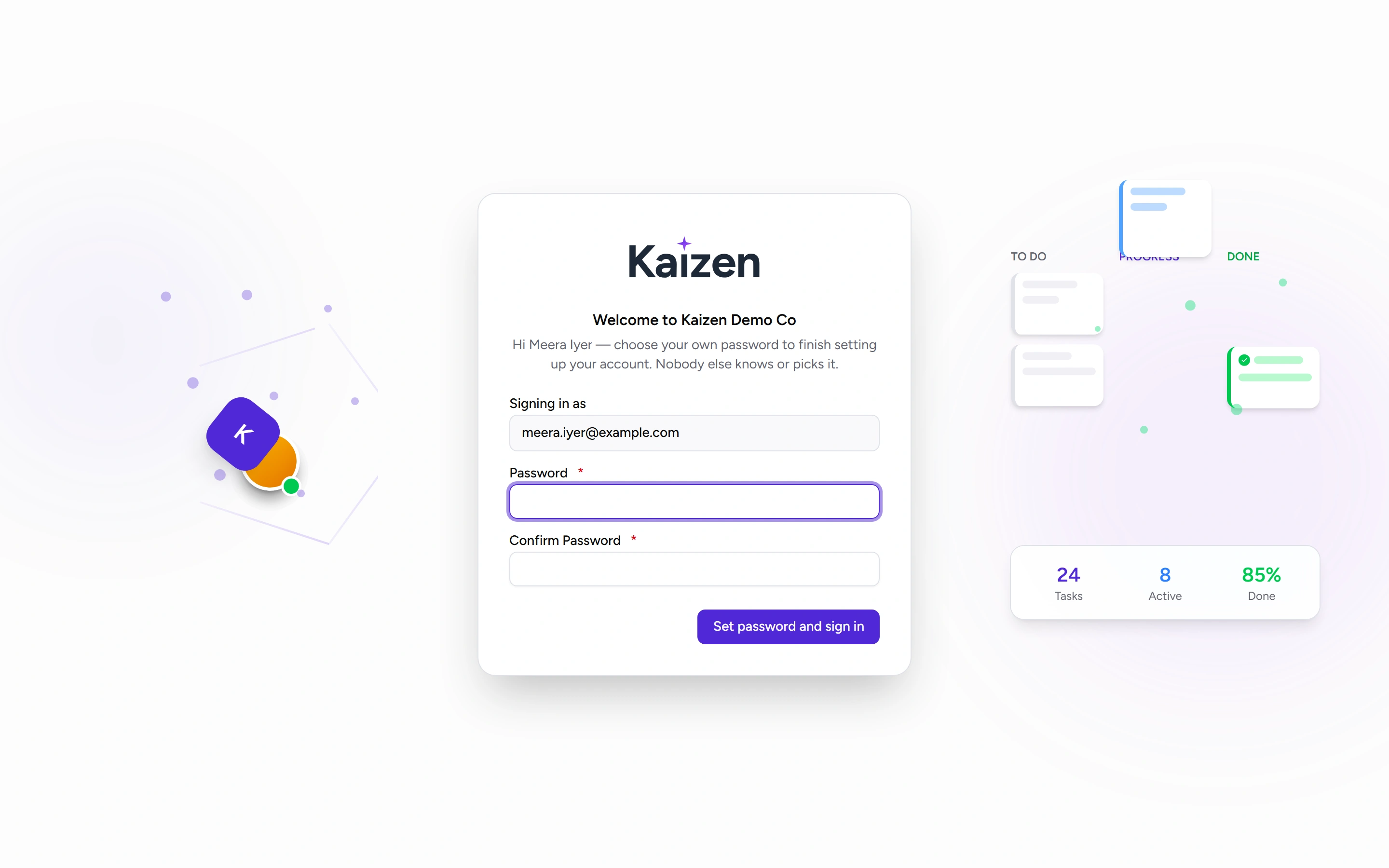
The email address under Signing in as is fixed — the link itself is what identifies you, so there's nothing to type there. Enter a Password, repeat it under Confirm Password, and choose Set password and sign in.
That takes you straight to your dashboard. Nobody else knows or picks your password, and nobody sent you one.
Opening the link does not sign you in. It only shows you the form; your account starts working the moment you set a password. If you open it and wander off, nothing has happened yet.
The link lasts 72 hours. It's single-use, but it's only used up when a password is actually set — so getting the password rules wrong on the first try doesn't burn it. Try again on the same link.
If your company uses Microsoft sign-in
If your company has turned off password sign-in, the invitation has no password link at all. Instead it points at the sign-in page, where you choose Sign in with Microsoft and use your normal work account.
There's nothing to set up and no password to create. Your Microsoft work email has to match the email you were invited on — if it doesn't, whoever manages Kaizen needs to correct your address first.
Signing in from then on
Go to your company's Kaizen address and sign in with your email and password, or with Microsoft — whichever the sign-in page offers. If you only ever see a Microsoft button, that's your company's choice, not a fault.
Tick Remember me to stay signed in on that device instead of being asked again after a couple of idle hours. It works for both ways of signing in, and it starts unticked — so on a shared or public computer, simply leave it alone.
Forgotten your password later? Use the forgotten-password link on the sign-in page — your invitation is finished with by then. On a Microsoft-only workspace there's no password to reset, so that link isn't offered at all; sign in with Microsoft instead.
If the link doesn't work
A link that has expired, has already been used, or has been replaced all give the same message: This invitation link is invalid or has expired. It's deliberately vague so that nobody can learn anything about your account by guessing.
The fix is the same in every case: ask for a new invitation. Anyone who manages people in Kaizen can resend one.
Two things worth knowing:
- Only the newest email works. Sending you a fresh invitation kills the earlier one immediately, so if you have two in your inbox, use the most recent. The older one is dead, not a spare.
- Once you've signed in, invitations stop applying. If someone resends one by mistake after you're already set up, nothing happens to your account.
Good to know
- You will never be sent a password. Kaizen doesn't create one for you or share one — an invitation link and your own choice is the only way in.
- Check your junk folder before assuming the invitation was never sent.
- Your company's address is specific to your organisation, so a colleague's link from a different company won't get you anywhere.