

Running payroll
Create a monthly run, generate and check payslips, enter variable pay, then finalise to lock the run and send everyone their payslip.
What you can do here
- Create a run for a month and generate payslips.
- Check every payslip, and enter what was actually paid for variable components.
- Finalise, which locks the run and emails everyone.
- Correct and resend if something was wrong.
Employees only ever see their own payslip.
The run list
Payroll Runs shows each run's Period, Status, how many Employees, Total Gross, Total Net, and who Processed it. Filter by Year and by status — Draft, Completed, or Cancelled.
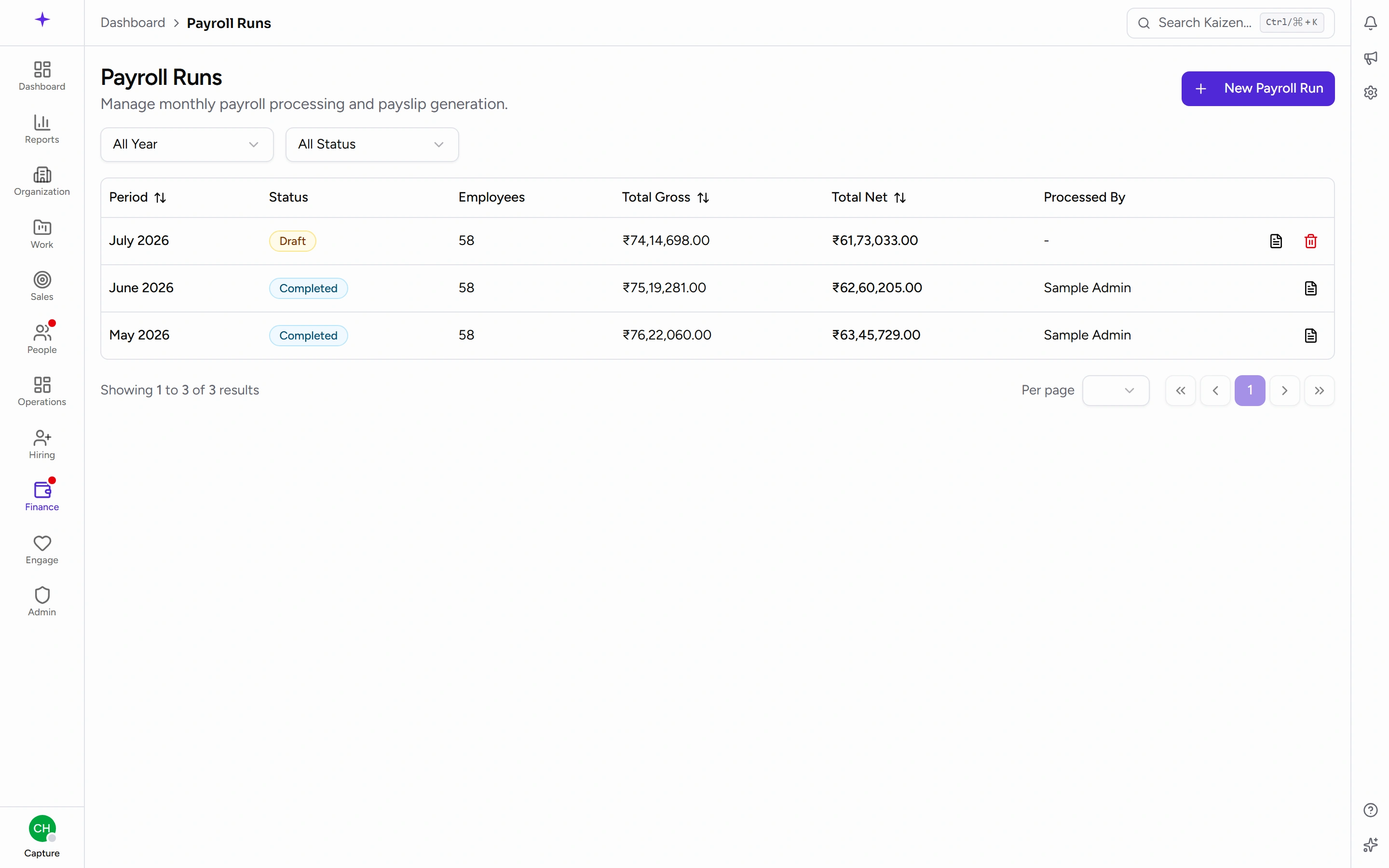
The totals are the fastest sanity check you have: a run whose gross has moved sharply against last month is worth opening before it goes anywhere.
Running one
1. Create it
Pick the Year and Month, add notes if useful, and create. It starts as a Draft.
2. Process it
Optionally choose who to include under the employee selection — selecting nobody processes everyone eligible. Then process and confirm.
Payslips are generated. Nothing is emailed at this point, which is what makes it safe to process early and check.
3. Check the payslips
The run shows a row per person: Employee, Employee ID, Working Days, Gross, Status, and actions. Filter by department when you're only checking one team.
Open an individual payslip to see the full breakdown before anyone else does. Working Days is the column worth scanning — it's where an attendance or leave problem shows up as a pay problem.
4. Enter variable pay
For components that vary, open the variable pay entry on the employee's row and record what was actually earned. Re-processing the run keeps these entries, so you can enter them once and reprocess safely.
5. Finalise
Finalise and confirm. This locks the run, marks the payslips final, and emails every employee their payslip.
Correcting a run
- Reopen moves a finalised run back to draft so you can fix and finalise again.
- Resend All re-sends payslips without reopening — for a mail problem rather than a figures problem.
- An individual payslip can be resent on its own, which is the right tool when one person didn't get theirs.
- All payslips for a run can be downloaded together.
Reopening is for wrong numbers; resending is for delivery. Using reopen for a delivery problem re-sends everyone a payslip they've already had.
Good to know
- Statutory items — PF, ESI, Professional Tax, TDS — are calculated for you. One precondition: the schemes that need a registration — PF, ESI, Professional Tax, Labour Welfare Fund — must have one on file. If a salary structure deducts for a scheme with no registration recorded, the run refuses to process and says which scheme is missing. That's deliberate: skipping the deduction quietly would stop a legally required contribution. Enter the registration under Company Profile → Statutory in the Admin area — see System settings — then process again.
- Payslips reflect the salary structure in force for that month. Changing someone's structure afterwards doesn't retrospectively change a finalised payslip; that's what reopening is for.
- Someone with no salary structure won't produce a sensible payslip. Their profile shows Salary structure pending payroll setup — fix that before processing rather than after.