

Connecting an AI assistant
Connect an AI assistant to Kaizen over MCP so it can look things up for you and do a few things on your behalf — how to connect one, what it can and cannot reach, and how to disconnect it.
What you can do here
- Connect an AI assistant to your Kaizen account, so you can ask it about your work in plain language.
- Let it answer from real Kaizen data — your tasks, your leave, your timesheets, your projects.
- Let it do three things for you: create a task, request leave, and record your time.
- See everything you have connected, and cut any of them off.
What this is
Some AI assistants can be connected to other tools so they can look things up for you. Kaizen supports this, so instead of opening Kaizen to check something you can just ask.
The standard it uses is MCP — the Model Context Protocol. It is the common way assistants connect to other software, so a tool that supports MCP can talk to Kaizen without anything being built specially for it. In your assistant's settings you will see the word MCP rather than the word Kaizen: Kaizen is the MCP server, and the address below is its server URL.
You do not need to understand the protocol to use this. It matters for one practical reason — when your assistant asks for an "MCP server URL", that is what step 2 gives you.
Two things are worth being clear about before you connect anything.
- The assistant acts as you. It sees exactly what you see when you sign in, and nothing more. It cannot reach a colleague's leave, a document you have no access to, or a screen your role does not give you.
- You connect it, and you disconnect it. Nobody else can connect an assistant to your account, and there is no administrator screen that disconnects it for you.
Connect an assistant
You start this from the assistant, not from inside Kaizen.
- In your AI assistant, find where it lets you add a connection or a tool. The wording differs between assistants — it is usually under settings, connectors or integrations.
- When it asks for the MCP server URL (some assistants call it the server address, or just the URL), give it your company's Kaizen address with
/api/mcpon the end. If you sign in to Kaizen athttps://yourcompany.example.com, the MCP server URL ishttps://yourcompany.example.com/api/mcp. If you are not sure of your address, it is the one in your browser's address bar when you are using Kaizen. - The assistant sends you to Kaizen to sign in, exactly as if you had opened it yourself.
- Kaizen then asks you to approve the connection. The screen names the assistant, lists what it is asking to be allowed to do, and shows which account you are granting it as. Read that last part — if you are signed in as somebody else, this is where you would catch it.
- Choose Allow. Deny stops the whole thing and nothing is connected.
That is it. From then on you can ask the assistant about your work.
If the screen says it is not available on your account
Connecting an assistant is a permission, and not everybody has it. If the approval screen tells you it has not been enabled for you, ask whoever administers Kaizen at your company to turn it on for your role. It is not something you can switch on yourself.
What you are allowing
The approval screen asks for two things, kept separate so you can tell them apart.
- Seeing your work — your tasks, your leave, your timesheets, who on your team is available, how your projects are going, and what clients owe the company.
- Making changes for you — creating a task, requesting leave, and recording time against your day.
Both are limited by what your own account can already do. Granting them does not widen your access.
What you can ask it
These all work, and all answer from live Kaizen data:
- Your work — "what am I meant to be working on?", "what is due this week?", "what is on my plate?"
- Your leave — "how much leave have I got left?", "was my leave approved?", "when did I last take time off?"
- Your timesheet — "what did I log yesterday?", "how many hours have I put down today?", "can I still edit Monday?"
- Your team — "who is off today?", "can I reach Priya?", "is anyone away before I book this meeting?"
- Your projects — "how is this project going?", "are we on track?", "which projects am I on?", "who is away on this project over the next few weeks?"
- A task's history — "what has happened to this task?", "has anyone touched it since it was assigned?", "why is it not finished?"
- Money owed to the company — "what is outstanding?", "who owes us?", "how much is overdue?"
- The sales pipeline — "how many leads are at each stage?", "what is in the pipeline?", "what did we win this month?"
The last two only answer as far as your own permissions reach. If you cannot see the company's invoices in Kaizen, the assistant cannot either.
What it can do for you
Three things change data. The assistant should confirm the details with you rather than filling them in itself.
- Create a task — on a project, optionally assigned to someone, who is then notified.
- Request leave — for yourself only. It goes to your approver like any other request, and the reason has to be yours, not something the assistant writes for you.
- Record your time — for one day at a time.
Your company's time-logging rules apply either way. Whether a day can still be corrected after it has been saved, and how long it stays open at all, are settings your company chooses — and an assistant is not a way round them. If a day is already closed, the assistant is told so and nothing is saved.
The same goes for the project: an assistant can only log against one that is still running. Ask it to log time to a project that has been completed, cancelled or put on hold and it is refused, exactly as the timesheet would refuse you.
What it cannot reach
Some things are closed to assistants whatever your permissions are:
- Payroll, salaries and payslips.
- Project budgets, costs, margins and charge rates.
- The reason anyone is on leave, and even the kind of leave. Asking who is away on a project returns names and dates only — never why, and never whether it was sick leave.
See and disconnect what is connected
Open the account menu — the same one that holds Change Password — and choose Connected assistants.
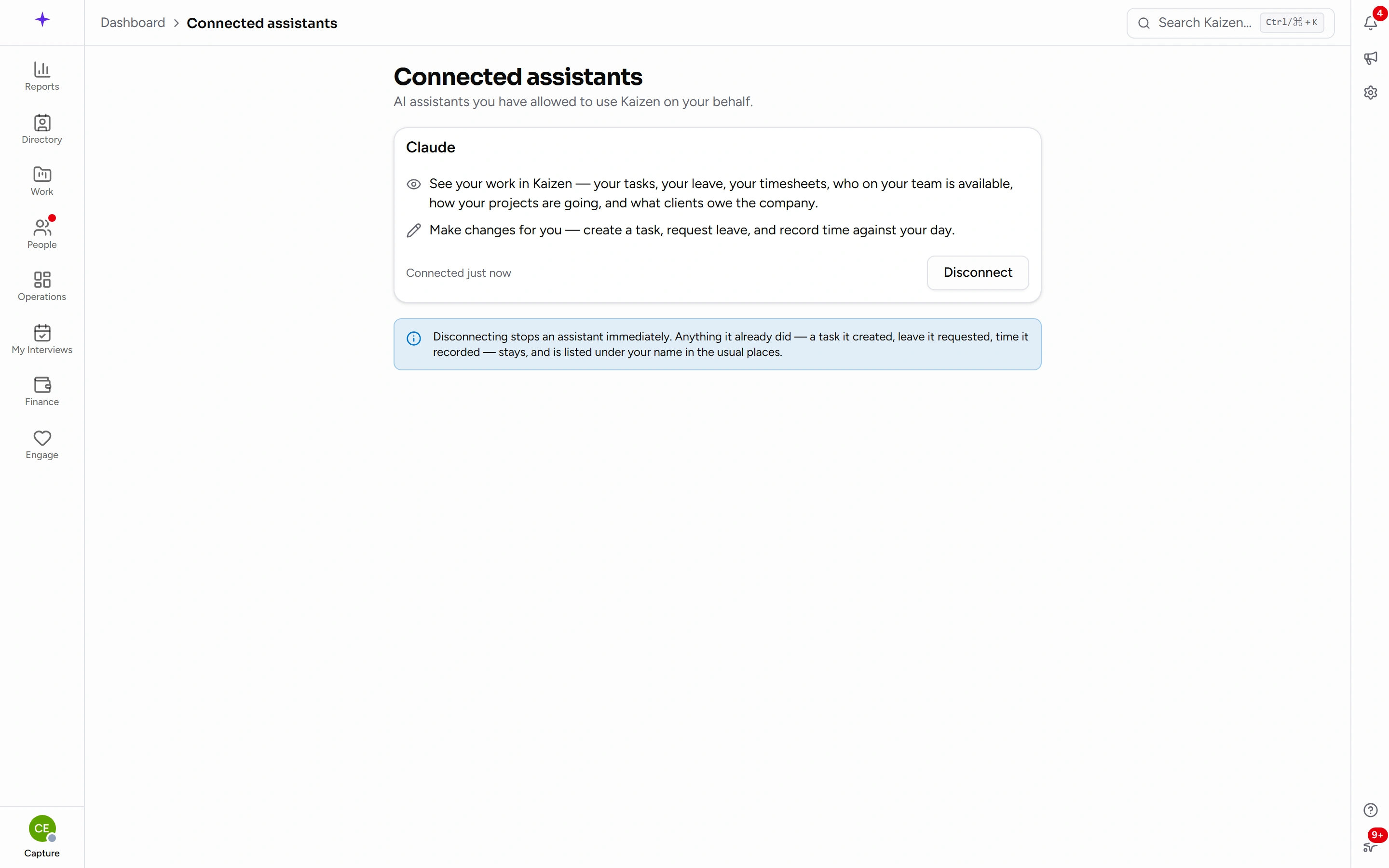
Each connection is a card showing the assistant's name, what you allowed it to do, and when you connected it. Disconnect ends it, after a confirmation. The assistant loses its access straight away and would have to be approved again from scratch.
If you have never connected anything, the page says so — that is the normal state, not a fault.
Good to know
- Disconnect anything you do not recognise. It costs nothing; you can always reconnect.
- You may occasionally be asked to approve again. Connections do not last forever, and re-approving is the same short flow.
- What the assistant does is recorded. Actions taken on your behalf appear in Kaizen's history as yours, because that is what they are.
- An assistant can be wrong. It is reading real data, but it is still summarising it for you. For anything that matters — a leave balance you are about to rely on, a figure you are about to send a client — check it on the page itself.