

Workflows, labels & priorities
Configure the states tasks move through on the board, the rules about moving between them, and the shared labels and priorities.
What you can do here
- Define the states tasks move through on a board, and their order.
- Decide what movement is legal — backwards, reopening, reviving.
- Give one project its own workflow without disturbing everyone else.
- Manage the labels and priorities shared across all tasks.
This is task-lifecycle configuration. It isn't an approval engine or an automation builder.
The page
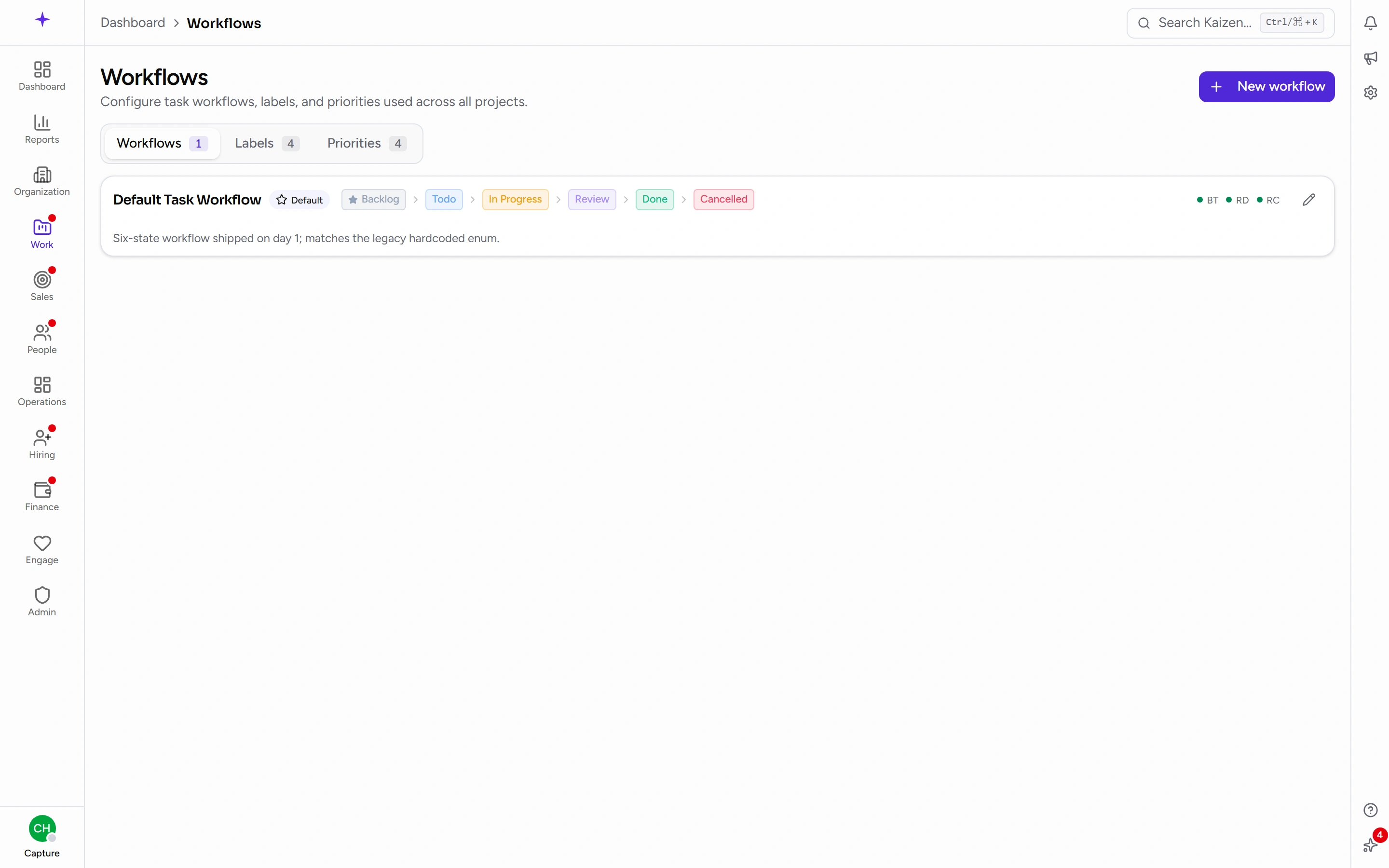
Workflows has three tabs, each with a count: Workflows, Labels, and Priorities. Each has its own New workflow / New label / New priority action.
Building a workflow
Give it a Name — for example Engineering Workflow — and an optional Description.
Transitions
Three switches, all on by default:
- Backtrack — tasks may move to earlier states.
- Reopen done — done tasks may be reopened.
- Reopen cancelled — cancelled tasks may be revived.
Turning these off is how you make a board strict. Turning Backtrack off, for example, means work can't quietly slide back from Review to In Progress without somebody noticing.
States
Add each state, drag them into the order they should appear on the board, and give each a colour. Every state has a kind:
- Active — work in flight.
- Done — finished.
- Cancelled — abandoned.
The kind is what Kaizen reasons about, not the name — it's how a task counts as complete regardless of whether you called the state Done, Shipped, or Live.
A workflow needs exactly one state marked as the initial one, and at least one Done state.
Common tasks
Change or retire a workflow
Open it to change its states or rules. To retire one, archive it — and you can restore it later.
Two things will stop you: the default workflow can't be archived, and a workflow still in use has to have its projects moved first.
Give one project its own workflow
- Open that project's Settings tab and find Task Workflow.
- Either switch the project to a different shared workflow, or clone the current one to make a Custom (this project) copy you can change freely.
The difference matters: a Global workflow is shared, so editing it changes every project using it. A cloned one belongs to that project alone. If a project is already on a custom workflow, cloning again is refused — you're told you're already on one.
Manage labels and priorities
Switch to the Labels or Priorities tab and add entries there. These are shared across every project's tasks, which is why they live here rather than per-project.
Good to know
- Changing a workflow changes live boards. Renaming or reordering states affects every project using it, immediately.
- A state you add shows up everywhere. It gets its own column on the board and on Kanban View, and it appears in every place a status can be set — the task page, the detail panel, an inline edit in a list, the bulk Change status action, and the status filters. States you added take a neutral colour on the board unless you give them one.
- Removing a state that tasks are sitting in is the one to be careful about — move that work first.
- Colours are for humans; the state's kind is what reports and completion counts use.