

Getting around Kaizen
A ten-minute orientation — how the screen is laid out, the two shortcuts worth learning, where every module hides its settings, and the habits that make the rest obvious.
What you can do here
- Recognise the four parts of every Kaizen screen.
- Get anywhere in two keystrokes.
- Find a module's settings without hunting for them.
This is the read-it-once page. Ten minutes here saves a fortnight of clicking around.
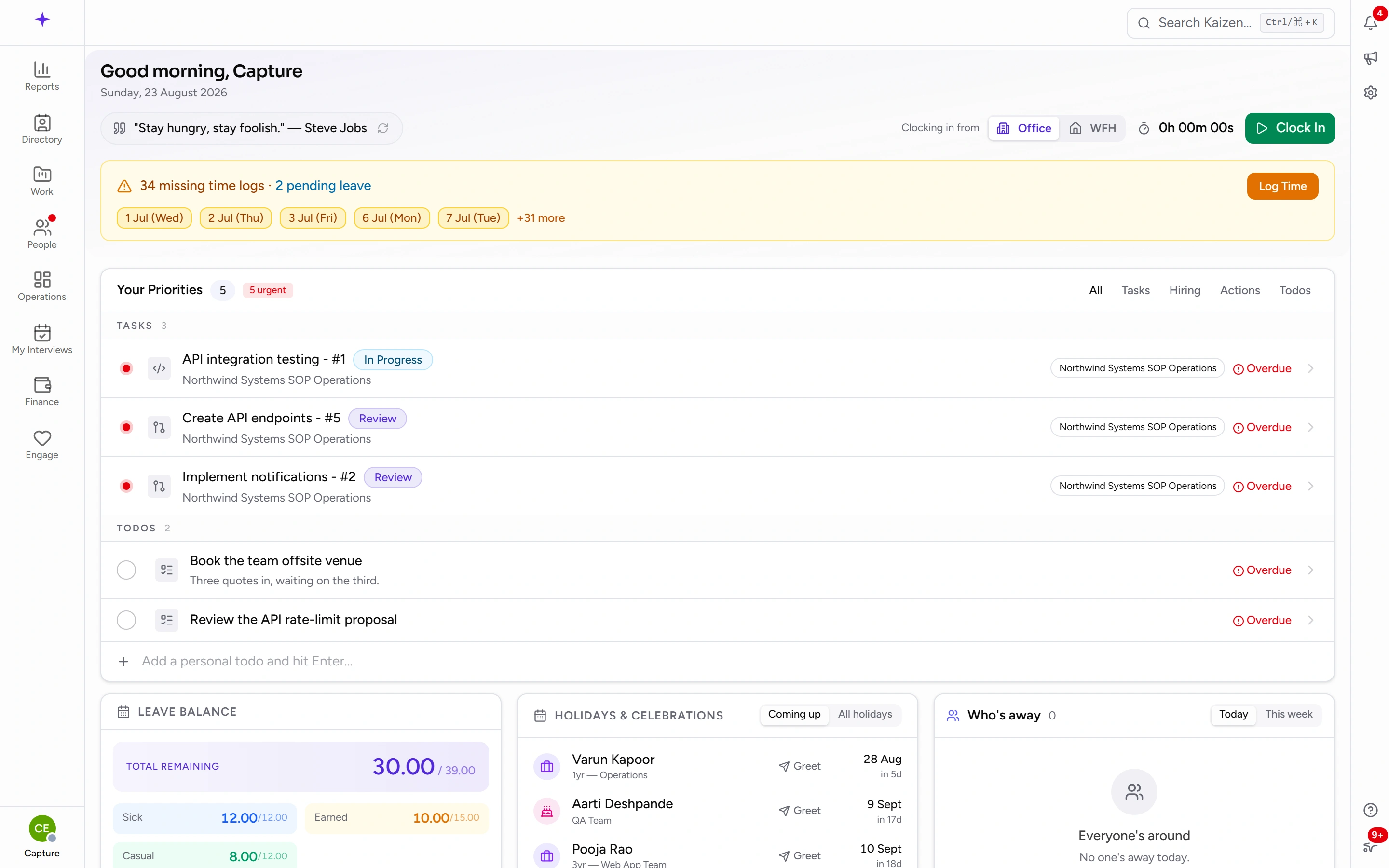
The shape of every screen
Kaizen looks the same wherever you are, and it's worth naming the four pieces:
- A narrow rail down the left. One icon per area — Dashboard, Reports, Organization, Work, Sales, People, Operations, Hiring, Finance, Engage, Admin. It deliberately shows areas rather than screens: hover a group and a flyout lists what's inside it, so the rail stays the same width whatever you're doing. On a phone it becomes a slide-out menu with the same groups.
- The page, in the middle. Its heading tells you where you are, and the breadcrumb above it tells you how you got there. The breadcrumb is clickable, and it's the fastest way back up a level.
- A strip of icons down the right. Five panels that follow you from page to page: Notifications, Announcements, Quick settings, Help, and What's New. They slide out over the page instead of taking you away from it — so you can read a notification without losing what you were doing.
- Your avatar, top right. Profile, Change Password where your company uses passwords, and Log Out.
The two shortcuts worth learning
Search — Ctrl + K (⌘ + K on a Mac). Or just press / anywhere you're not typing into a box.
This is the single biggest difference between someone who's fluent in Kaizen and someone who isn't. Search reaches tasks, projects, people, clients, leads and invoices by name — and help articles too. Fluent people stop using the sidebar for anything they can name.
Help — Shift + ?. Opens the help panel beside whatever you're looking at, already on the relevant article. If it opens on the wrong thing, the search inside it goes straight to this documentation.
Both are ignored while you're typing, so neither will interrupt you mid-sentence.
Configuration lives behind the gear
This is the thing nobody guesses, and it explains most "where on earth is that setting" questions.
Every module keeps its settings behind a gear on its own page header — a Configure button, or a gear on the busier screens. Open Leads and the gear holds lead sources and pipeline stages. Open Tickets and it holds ticket categories. You never have to remember which admin screen a list lives on; you go to the module and open its gear.
The same screens also all live together under Admin, which shows a settings rail down the left, grouped by what each screen configures. There's a Search settings… box at the top of that rail, and it's the quickest route of all when you know a screen's name but not its home.
Two doors, one set of rooms. Use whichever is nearer.
Why your Kaizen isn't your colleague's
You only see what you're allowed to see. Permissions come from your role, and the sidebar is built from them — a group that isn't there isn't hidden from you as a person, it's simply not yours. This is normal and not a fault.
So "it's not in my sidebar" and "it doesn't exist" are different statements. If you need something you can't see, ask whoever manages roles rather than assuming it isn't built.
Dashboards differ for the same reason: what's on yours depends on what you do.
A handful of habits
- Start on the dashboard. Your Priorities is the list of things actually waiting on you — approvals, tasks, missing time logs. Working from it beats going module by module.
- Search before you navigate. If you can name it,
Ctrl + Kis faster than any menu. - Let panels stay panels. Reading a notification or a help article doesn't have to cost you your place.
- Read the empty states. A screen with nothing on it usually says why, and often links to the thing that would fill it.
- Deactivate, don't delete. Across Kaizen, retiring something keeps history intact where deleting it doesn't. Where a delete is offered it's usually the wrong tool.
Make it yours in two minutes
Open Quick settings in the right-hand strip and pick a Theme — Light, Dark, or System, which follows your computer.
Then open Profile from your avatar and check the basics are right: your name as people should see it, your contact details, and your skills, which is what project staffing searches when it needs someone who can do what you can do.
Good to know
- This is the page you read; the app also shows you. Contextual help sits behind
Shift + ?on every screen, and small(?)markers explain individual fields where they'd otherwise be guesswork. - Your company's address is your own. Kaizen lives at an address specific to your organisation — bookmark it once and never look it up again.
- What's New in the right-hand strip is where changes get announced. If something moved, that's where it says so.