

Requesting work-from-home
Ask to work from home for a day or a stretch of days, track approval, and clock in as WFH once it's granted.
What you can do here
- Ask to work from home for a single day or a run of consecutive days.
- Take a half day at either end of that run, if you only need part of a day.
- See what's left of your WFH allowance for the year before you commit to it.
- Name extra people to be told, beyond your approver.
- Track approval, and withdraw a request you no longer need.
- Clock in as working from home once the day is approved.
- If you approve other people's: work through the queue, and shorten or revoke a request after the fact.
Where to find it
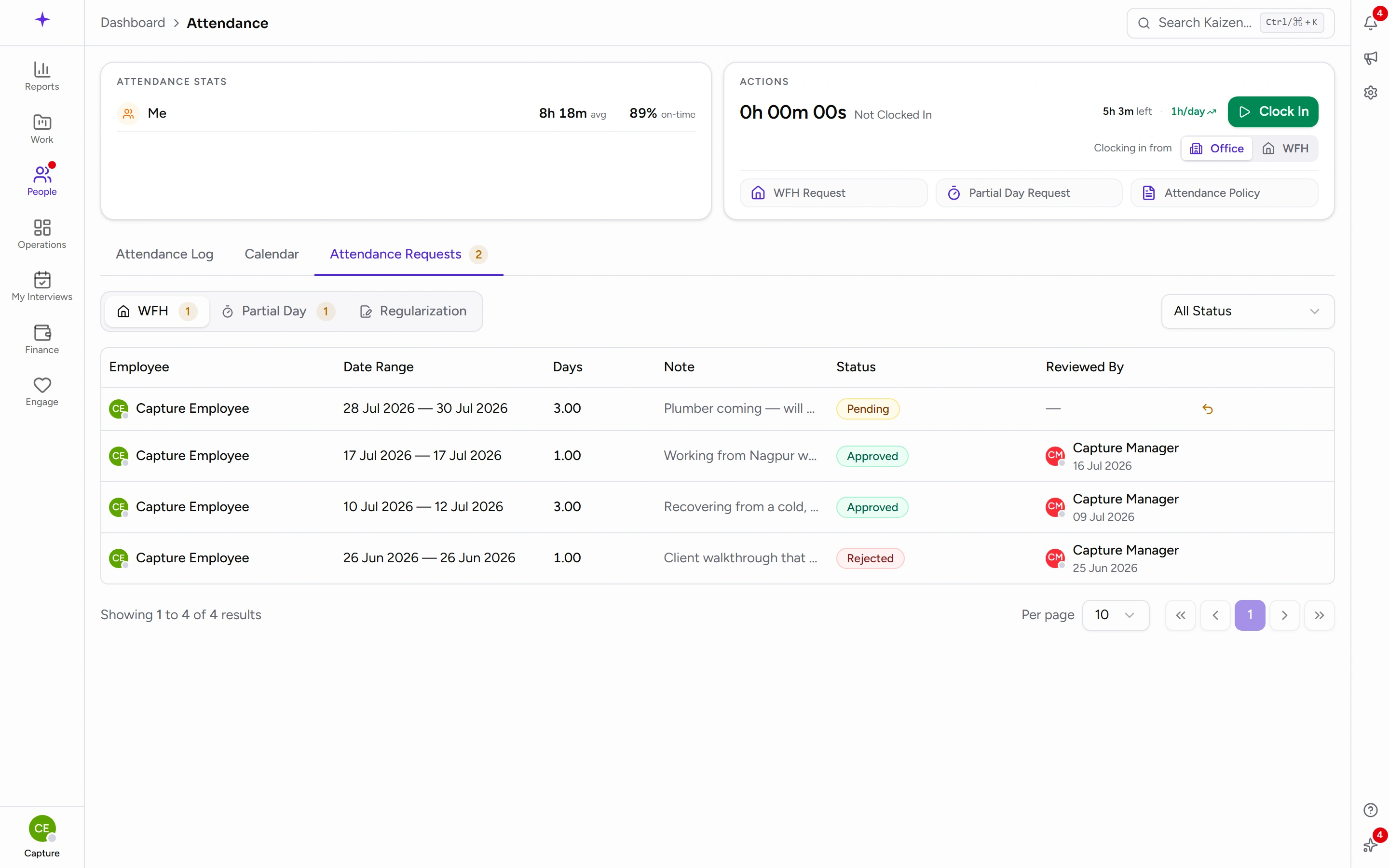
WFH lives on the Attendance page — there's no separate WFH section in the sidebar. Open Attendance, and the Actions card in the top right holds WFH Request, alongside Partial Day Request and a link to your Attendance Policy.
Requests you've raised, and any waiting on you, are under the Attendance Requests tab, on its WFH sub-tab. A number beside the tab counts what's still pending.
Common tasks
Request work from home
- Open Attendance and click WFH Request. A panel opens headed Request Work From Home.
- Check the WFH balance this year shown at the top — that's what you have left.
- Set From and To. For a single day, make them the same date.
- If you only need part of a day, tick the half-day option, then set the Start session and End session to First Half or Second Half.
- Watch the day count as you go — it's worked out live, and the Request button stays disabled while it comes to zero.
- Add a Note so your approver understands the context.
- Under Notify, add anyone else who should know — a project lead, say. Your approver is told regardless.
- Click Request.
Check whether it was approved
- Open Attendance and go to the Attendance Requests tab, then the WFH sub-tab.
- Each row shows its status. Filter by status, or by person if you can see other people's.
- A request for a date that has already passed carries a Backdated badge, so it's obvious to whoever reviews it.
Withdraw a request
Find it on the WFH sub-tab and use the revoke action on the row. You'll be asked to confirm at the Cancel Request prompt.
Clock in as working from home
- On Attendance, before you clock in, use the Clocking in from toggle to choose Office or WFH.
- If you already have an approved WFH day, you'll see · WFH approved today beside it.
- Click Clock In.
Your choice is recorded against that punch, so the day shows a WFH badge in your log. If you clock in from one place and out from another — office in the morning, home after lunch — the day is marked Split.
You don't strictly need an approved request to clock in as WFH, but the request is what tells your manager in advance and what the company's WFH reporting counts.
If you review other people's requests
The WFH sub-tab shows your team's requests alongside your own, with a pending count.
Approve or reject
Use the tick or the cross on the row. Either way you can add Comments (optional) before confirming — worth doing on a rejection, since that comment is what the person sees.
Shorten an approved request
Use Adjust end date on the row. That's for when someone comes back to the office earlier than planned, and it leaves the earlier part of the request intact.
Revoke an approved request
Use Revoke on the row. This cancels the whole request rather than trimming it.
Good to know
- Your WFH allowance is set by your company's WFH policy, and administrators can set a different allowance for particular people. Attendance Policy on the Attendance page links to the written version.
- WFH is about where you work, not whether you work. If you need time off, apply for leave instead; if you need part of a day, raise a partial-day request.
- Requesting WFH doesn't clock you in. You still clock in and out as usual on the day.