

People & performance
Company directory
Find a colleague by name, email or employee ID, see how to reach them, and open their profile.
What you can do here
- Look someone up by name, email, or employee ID.
- Narrow the list to a department or a business unit.
- Get their email and phone without asking around.
- Open their profile for the fuller picture.
Finding someone
Open Employee Directory. Everyone you're allowed to see is shown as a card.
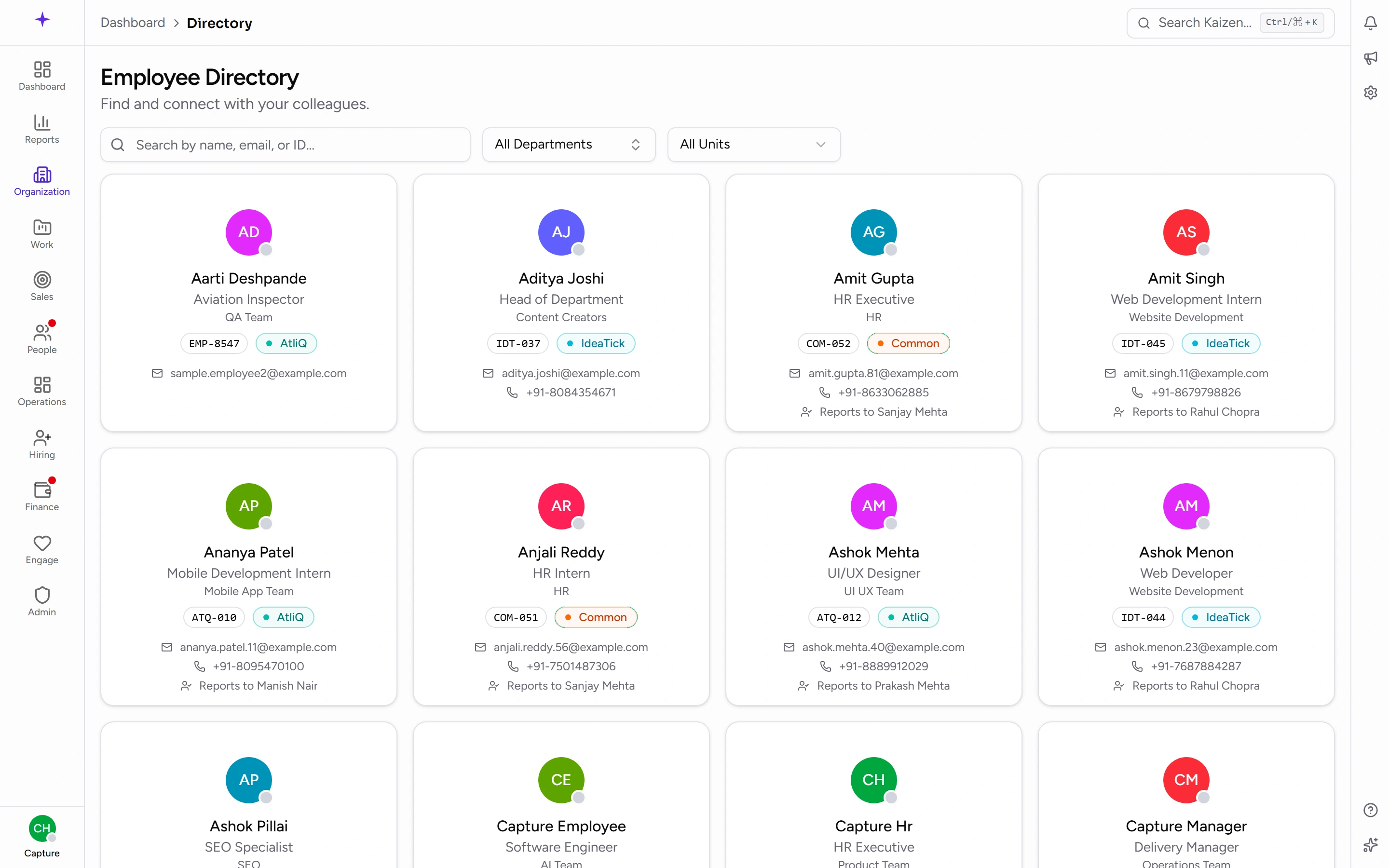
- Type into Search by name, email, or ID... — it matches all three, so a partial surname or an employee ID both work.
- Filter by Department, or leave it on All Departments.
- Filter by business unit: All Units, or any one of the business units your company has set up.
The filters and the search work together, so you can narrow to one department and then search within it.
What a card tells you
Each card carries the person's photo and name, their designation, their department, their employee ID, their business unit, and their email — plus a phone number if they've added one. Someone who hasn't had a designation or department set yet shows No designation or No department rather than a blank.
Click the card to open their profile, which is where the fuller detail lives — including their reporting line.
Good to know
- What you see depends on your access. Some roles see their own department, others see the whole company. If a colleague appears in your search and not in someone else's, that's the reason.
- Someone missing entirely is usually either not yet set up, or no longer active. Ask HR rather than assuming the directory is stale.
- Phone numbers come from what each person has put on their own profile, so a blank means they haven't added one — not that it's hidden from you.